Administration
Open the administration, follow the alerts, configure the computer and back up.
The Administration is the large window for designing and configuring. It brings together four tabs: Document types, Templates, Database and Settings, plus the Log.
Opening the administration
- Ctrl+G (Cmd+G on macOS), the Administration button or the menu.
- The password is asked once per session.
- When you go back to the Generation space, your batch and your entry are still there; the administration also reopens on the tab where you left it.
Alerts
A badge appears in the bar only when something needs your attention: orange for a warning, red for an error. For example:
- a printer that is set but not present on the computer, or no label printer;
- no document type, or a type with no template to produce;
- a template that refers to unknown information;
- a folder that cannot be found.
Each alert states what is expected, with a Fix in … button that takes you to the right setting. The report can be copied or saved.
Settings
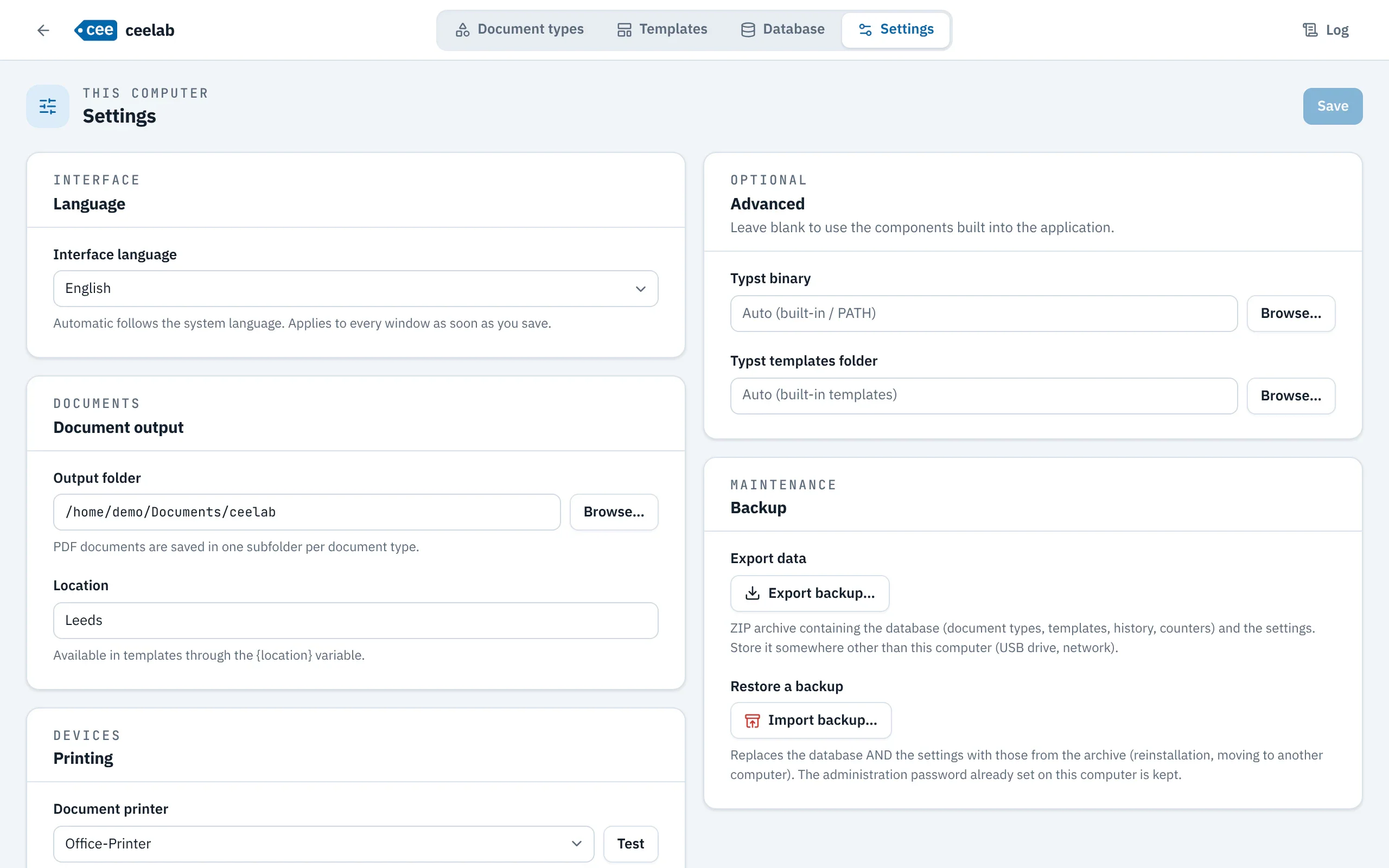
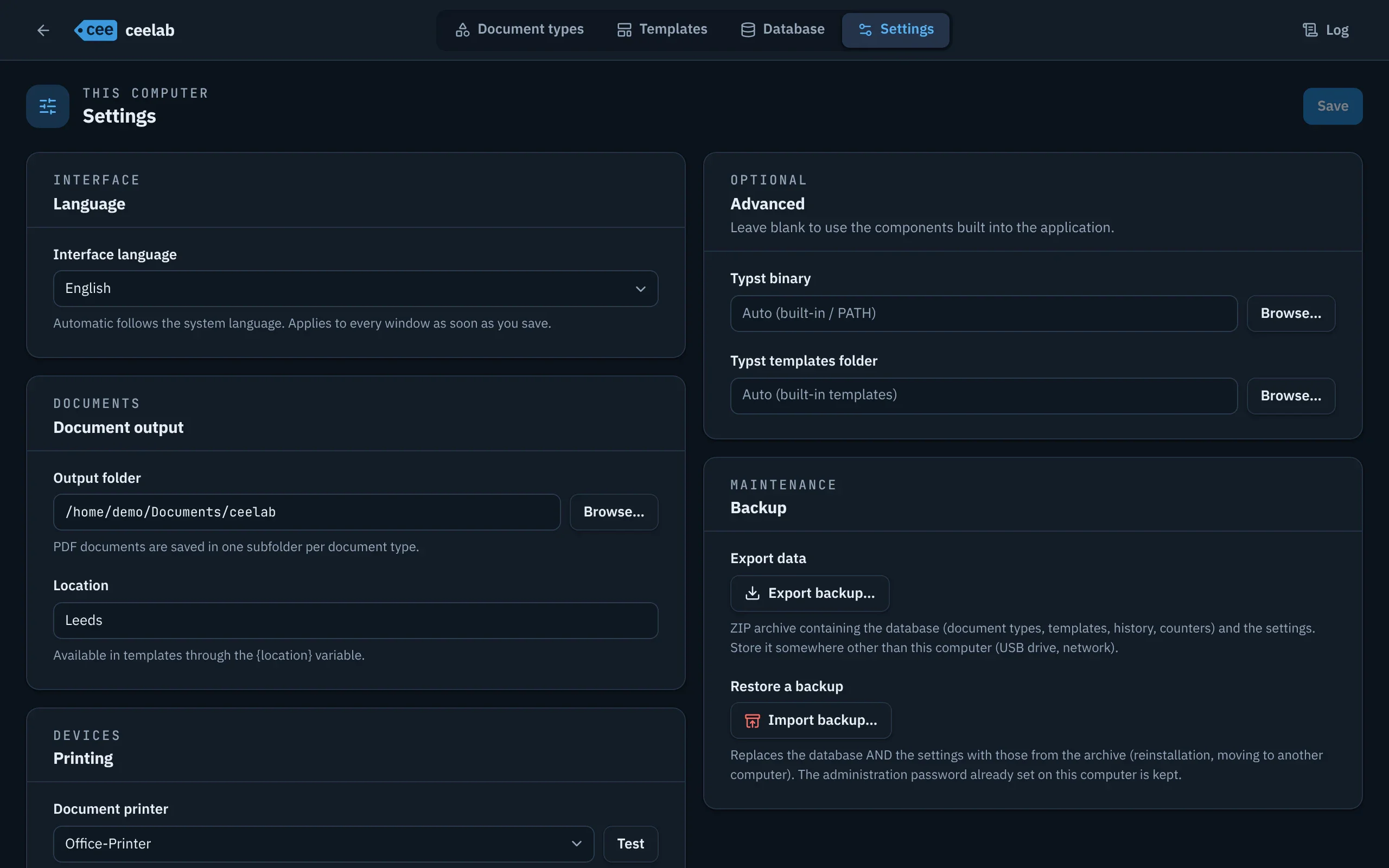
| Setting | Purpose |
|---|---|
| Interface language | French, English, German, Portuguese or Spanish; “Automatic” follows the computer’s language. |
| Output folder | Where PDFs are saved, with one subfolder per document type. |
| Location | A piece of information to place in your templates ({location}). |
| Printers | One for labels, one for documents; Test sends a test page. |
| Keep a PDF of every printed label | Keeps a PDF copy of each label, for traceability and reprinting from the history. |
Backup
In Settings › Backup:
- Export backup… creates a file that holds everything: document types, templates, history, counters and settings. Keep it off the computer.
- Import backup… restores everything in one go, on the same computer or a new one. If it fails, nothing is changed. The password already set on the computer is kept.
Log
The Log tab keeps track of the application’s activity; it helps when something goes wrong.