Generation
Enter values, build a batch, print and reprint from the Generation space.
The Generation space is the compact everyday window. The preview opens in its own window, without hiding anything.
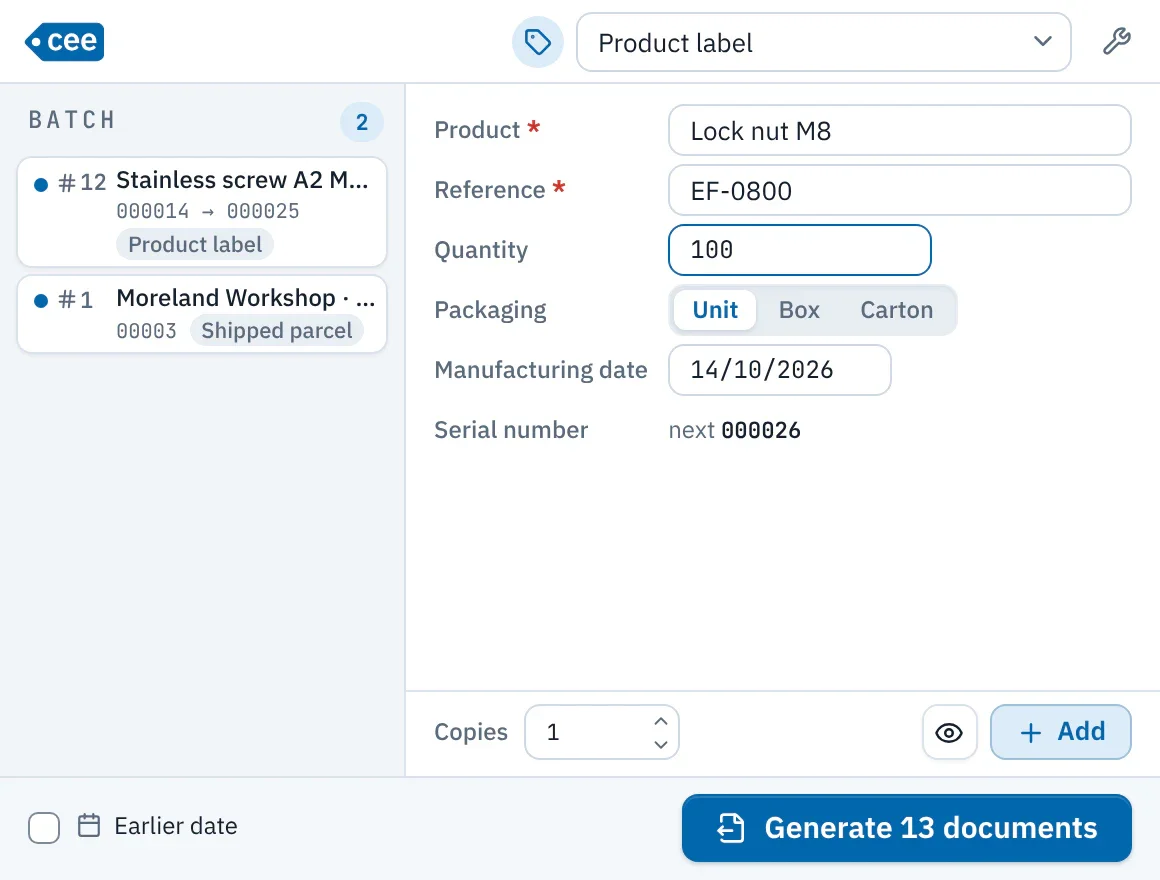
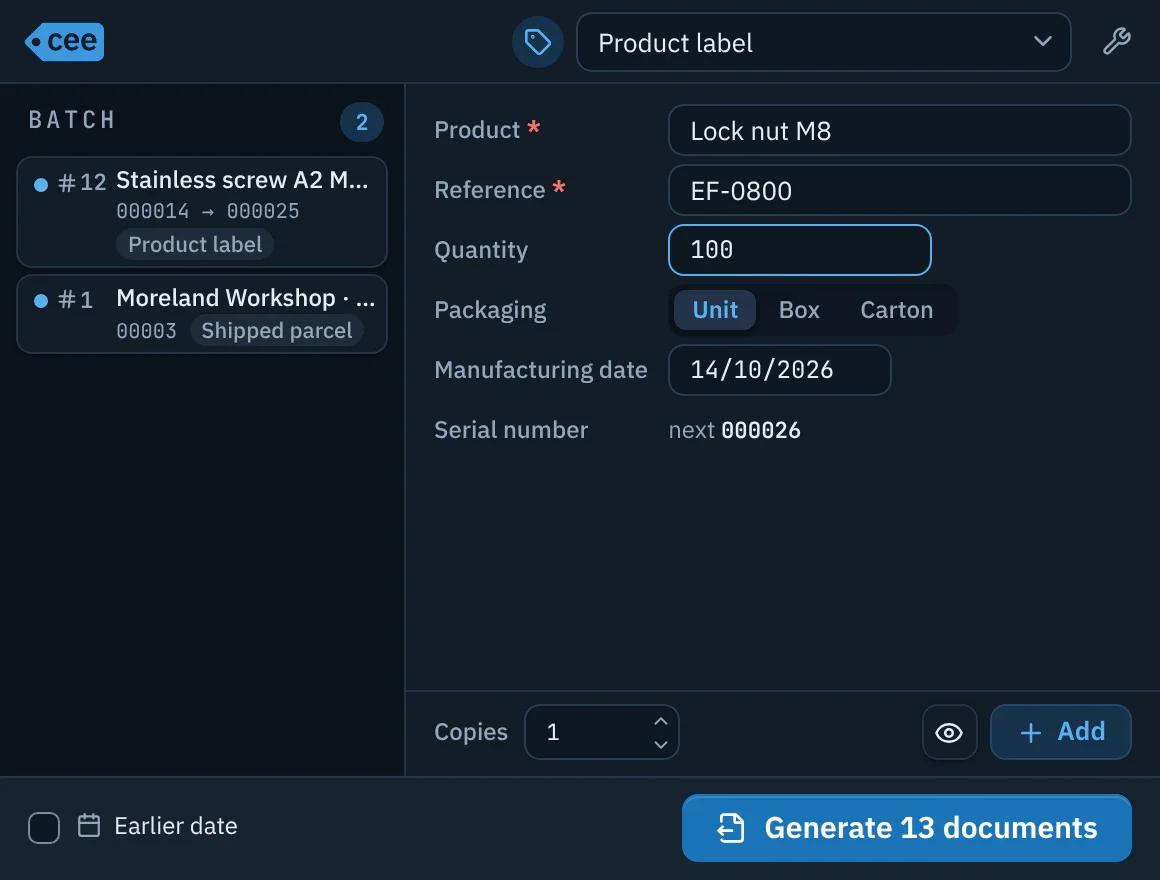
Entering values
- Document type: choose it at the top, from a filterable list. ceelab remembers the last one used.
- Form: only the fields to enter are shown (“*” if required). An error appears under the field concerned; a counter shows its next number.
- Yes/No: a checkbox, toggled from the keyboard with Space.
- Outputs: when a type produces several documents, chips let you choose which ones to produce.
- Copies, Preview and Add (Enter). The preview shows the result with the next numbers, without using anything up.
The batch
Lines build up in the batch, on the left, even of different types: number of copies, summary and expected numbers. On hover: Preview and Remove.
Earlier date: to backdate, the documents and the numbering follow the chosen date.
Printing
The button tells you what will come out: “Print 12 labels” or “Generate 12 documents”.
ceelab checks everything before it starts: if anything is missing, nothing is printed and no number is used. Then each number is reserved and recorded in the history, the batch’s labels go out together, in order, and the PDFs are saved.
The end screen
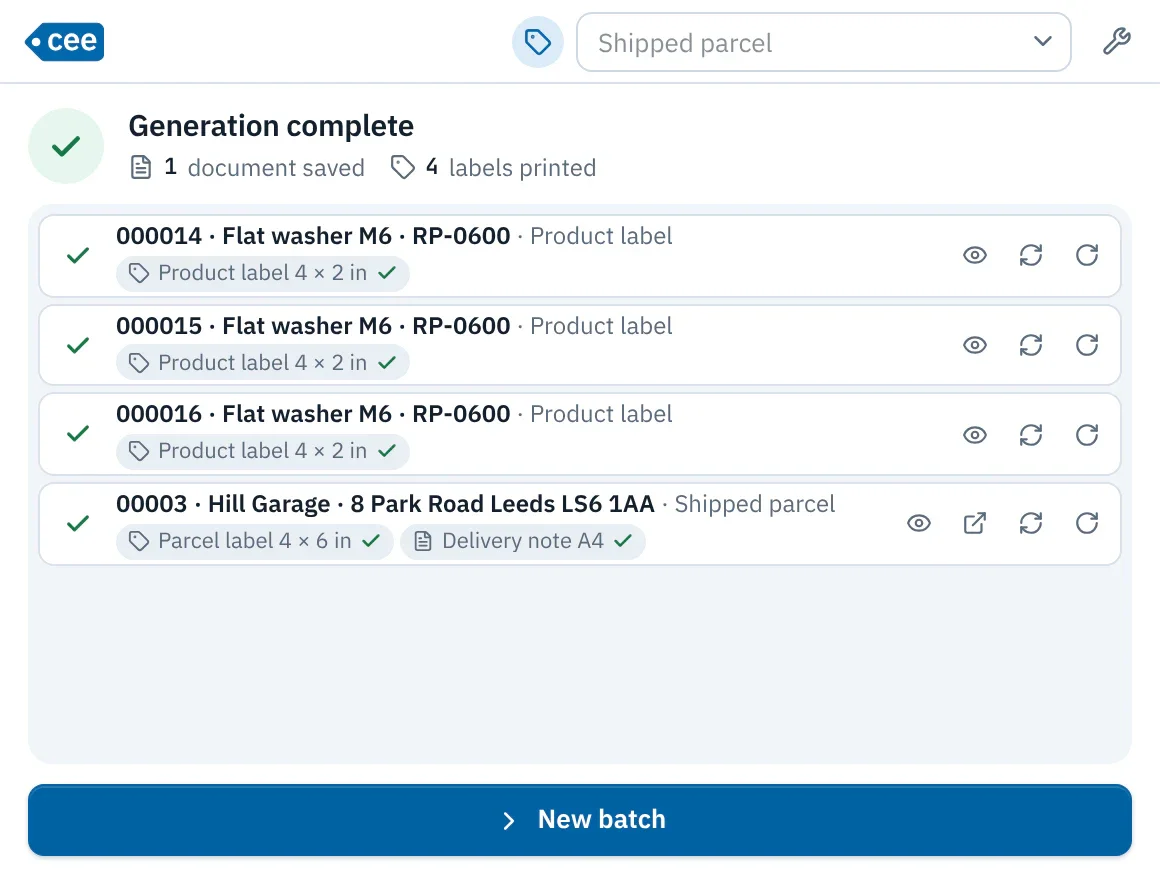
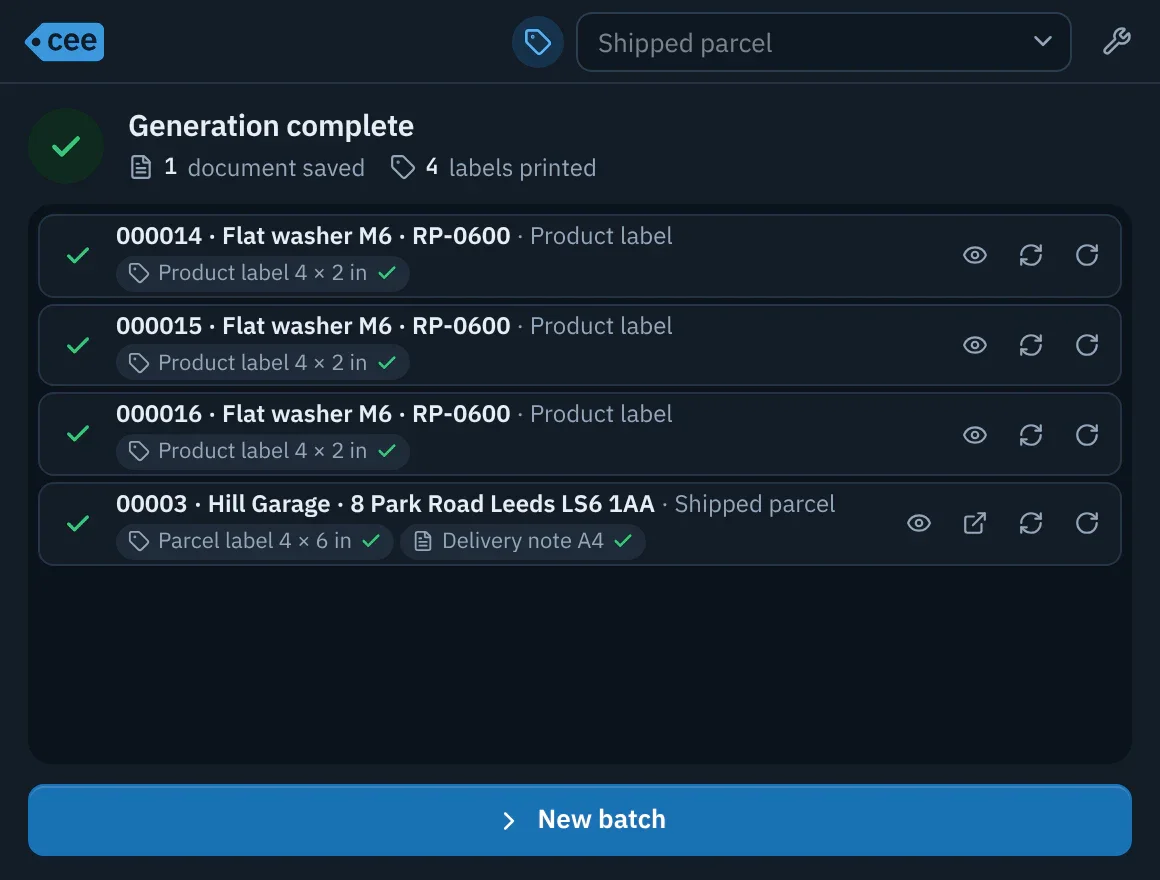
Each document appears with the status of its outputs. For each one:
- Preview, to compare with the paper;
- Open PDF, for documents;
- Reprint and Rotate (180°), for labels, without using up a number.
Keyboard
| Key | Effect |
|---|---|
| Enter | Next field; on the last one, adds the line to the batch. A barcode scanner that ends with Enter can thus chain entries. |
| Ctrl+Enter | Prints the batch. |
| Ctrl+N | Clears the batch. |
| Ctrl+G | Opens the administration (Cmd+G on macOS). |
If something is blocked
- No document type: an Open administration button takes you there.
- Grayed-out type: it cannot be printed yet; the reason is shown.
- Disabled button: a required field is missing, or no label printer is set; hover over it for the explanation.
A failed output is flagged on the end screen and in the history, from where it can be regenerated with the same number.