Document types
Create a type, choose its fields and numbering, and attach its templates.
A document type describes what you produce: “Product label”, “Parcel label”, “Certificate”… It brings together the information to enter (its fields) and the templates to print. The Document types tab lists your types on the left and opens the selected type on the right; save with Save (Ctrl+S).
Identity
- Name and Description.
- Document language: the language of dates and formatting in the printed documents, separate from the interface language.
- Advanced settings › Type key: the short name used by the
ceecommand (shipping-label, for example).
Fields
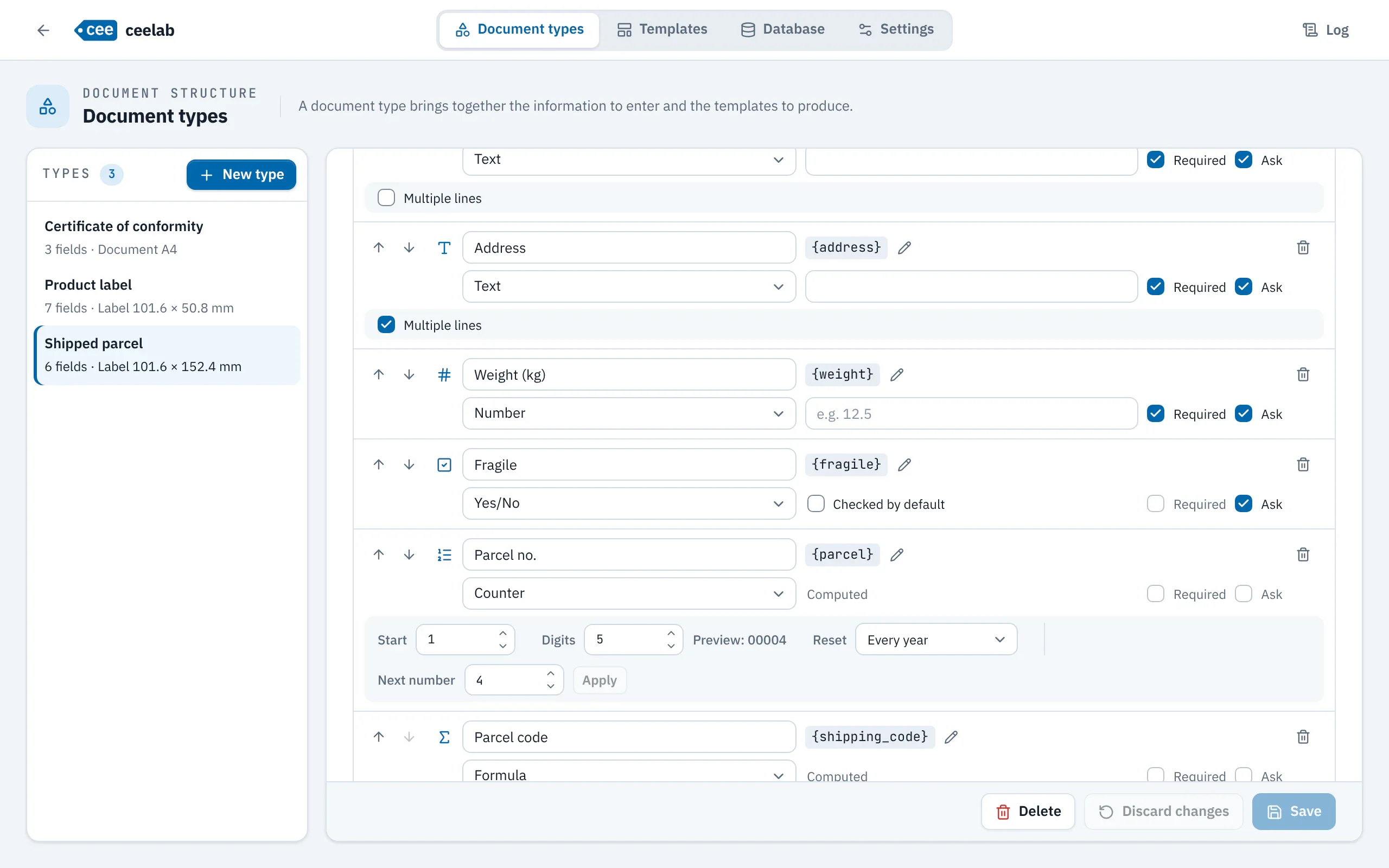
Each field has a label, shown to the operator, and a variable {key}, its short English name, which you place in templates and formulas. For a more meaningful name, Rename the variable (pencil) changes it everywhere it is used.
| Kind | Entry | What is printed |
|---|---|---|
| Text | one line, or several | the entry |
| Number | a number | the number as entered |
| Date | a date, prefilled if you wish | the date, short, in words or YYYY-MM-DD, in the document language |
| Choice list | buttons or a list | the chosen option |
| Counter | nothing: automatic | the number, with the leading zeros you want |
| Combined | nothing: automatic | several pieces of information joined together, for example {reference}-{serial} |
| Formula | nothing: calculated | the result of the calculation (see Formulas) |
| Yes/No | a checkbox | used in conditions: {if fragile then "FRAGILE" else ""} |
For each field: Required, Ask the operator (otherwise, a fixed value, never shown during entry) and a default value.
Automatic information
Usable in every template, with nothing to enter:
| Variable | Value |
|---|---|
{date}, {date_long}, {date_iso} |
document date: short, in words, or YYYY-MM-DD |
{time} |
time the batch was started |
{year}, {month}, {day} |
year, month, day |
{copy}, {copies} |
rank of the copy and total number (“3/12”) |
{document_type} |
name of the document type |
{location} |
location set in Settings |
Counters
- Numbers with no ceiling, with as many digits as you choose.
- Reset: never, every year, every month or every day, based on the document date.
- The numbers in a batch run in sequence, and every number used stays traced: a failed output is regenerated with the same number.
- The next number can be set by hand; ceelab asks for confirmation if it goes down.
The number 2026-10-0042 comes from a 4-digit counter reset every month, combined like this: {year}-{month}-{serial}.
Templates of the type
The Templates section shows the type’s templates:
- Produced on every generation: checked templates come out for each copy, with the same information and the same number;
- Edit, Detach;
- Create a template (label or A4, already filled with the fields of the type) and Attach an existing template….
A label goes to the label printer; a document is saved as a PDF.
If a template refers to information the type does not have yet, ceelab flags it and offers to create it (Create these fields, or Create and attach for a template imported from Word).
File names
File names builds the name of the PDFs from your fields ({code}, for example), with a preview. PDFs are saved in one subfolder per type; ceelab never overwrites an existing file.
Deleting a type
Its templates are kept, and the history of its documents can still be viewed and reprinted.